How to Use the Customer Portal
A quick walkthrough of everything you can do from your ACKR customer portal — sign in, view your quotes/work orders/invoices, pay online, request service, and leave a review.
1. Signing In
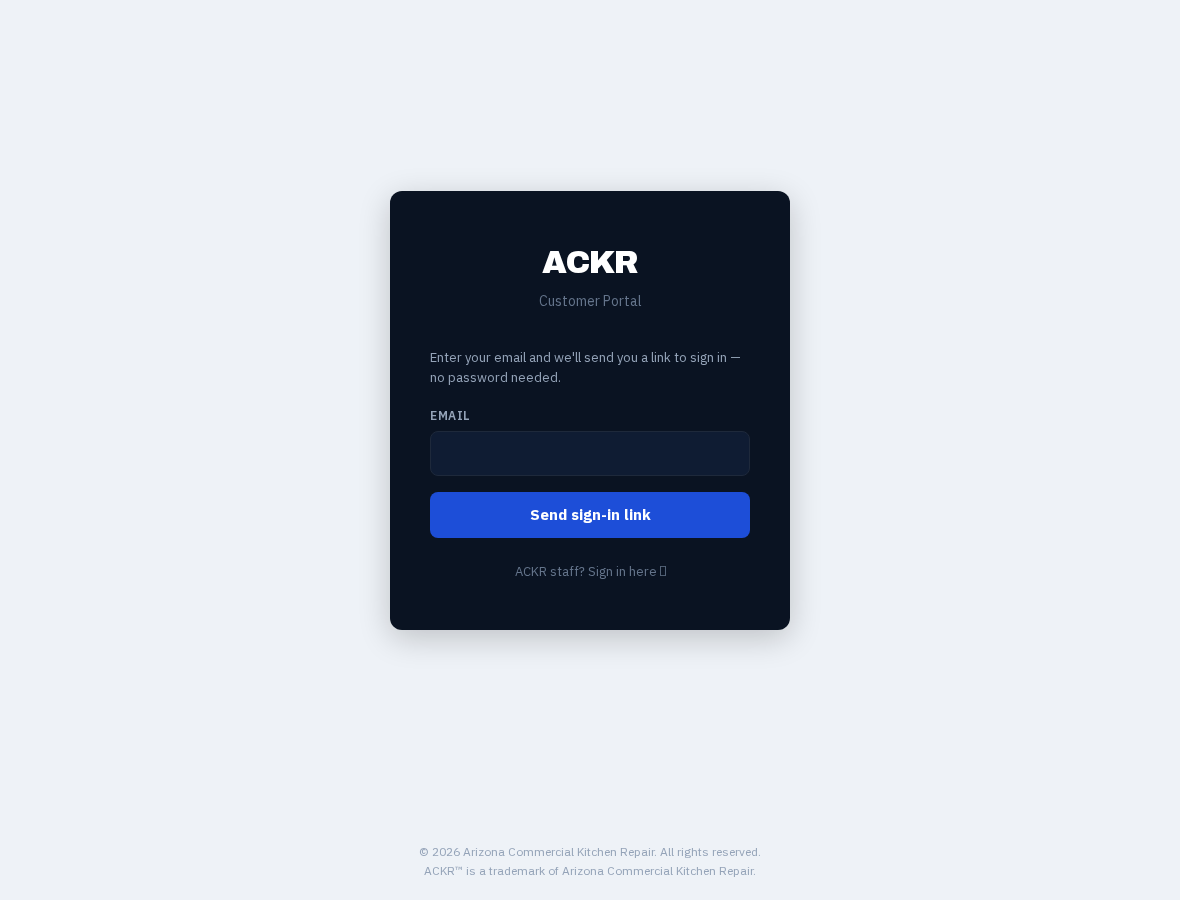
The customer portal has no password to remember — every sign-in is a one-time link sent to your email.
1
Go to the portal and enter your email
Visit the portal sign-in page and type in the email address we have on file for you. We'll send a link to that address — you don't need a password.
2
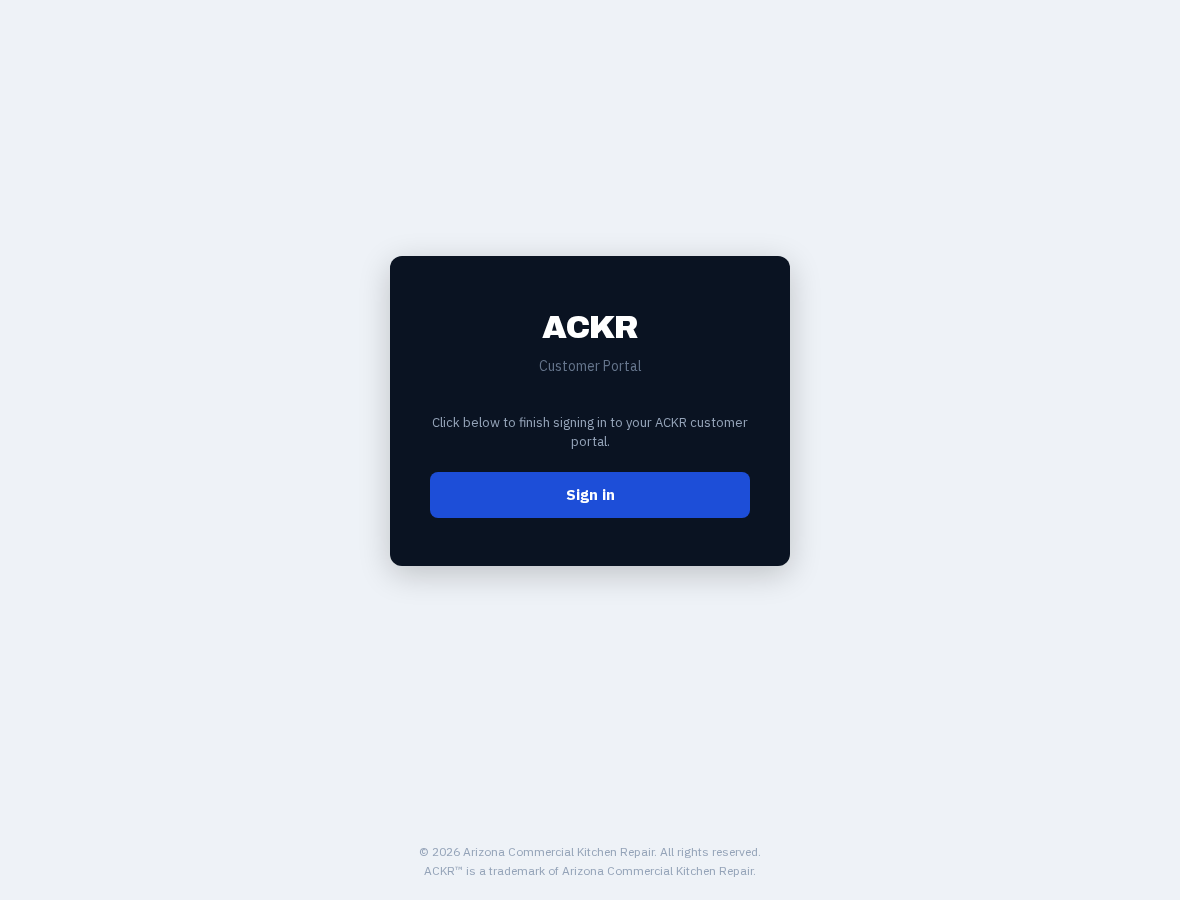
Click the link in your email
The email arrives within a minute or two. Click the link, then click the "Sign in" button on the page that opens. The link works once and expires after 15 minutes, so if it's expired, just request a new one.
2. Your Account
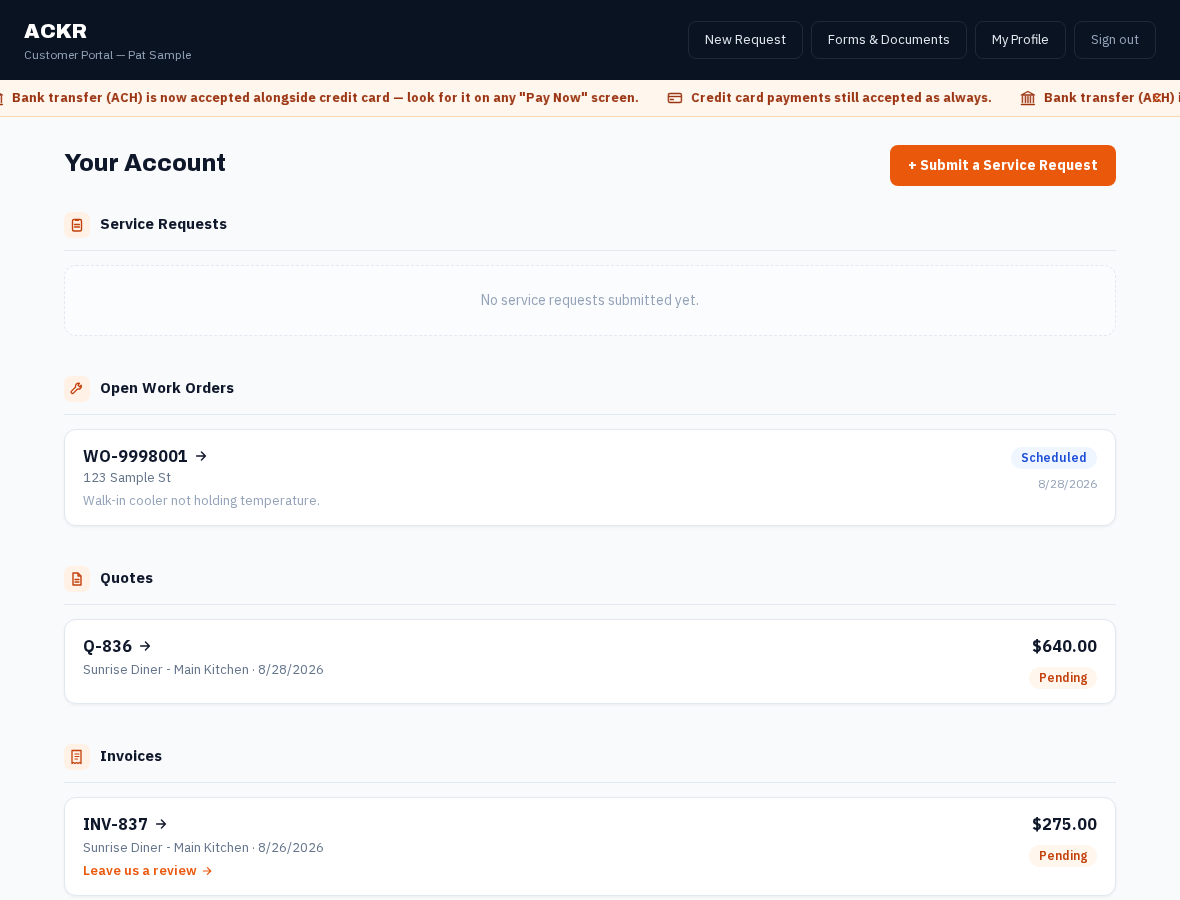
Once signed in, you land on Your Account — a single page listing everything tied to your company: service requests, open work orders, quotes, and invoices.
1
See everything in one place
Each section shows its own list with status and date. Click any item to see its full details.
3. Paying a Quote Deposit Online
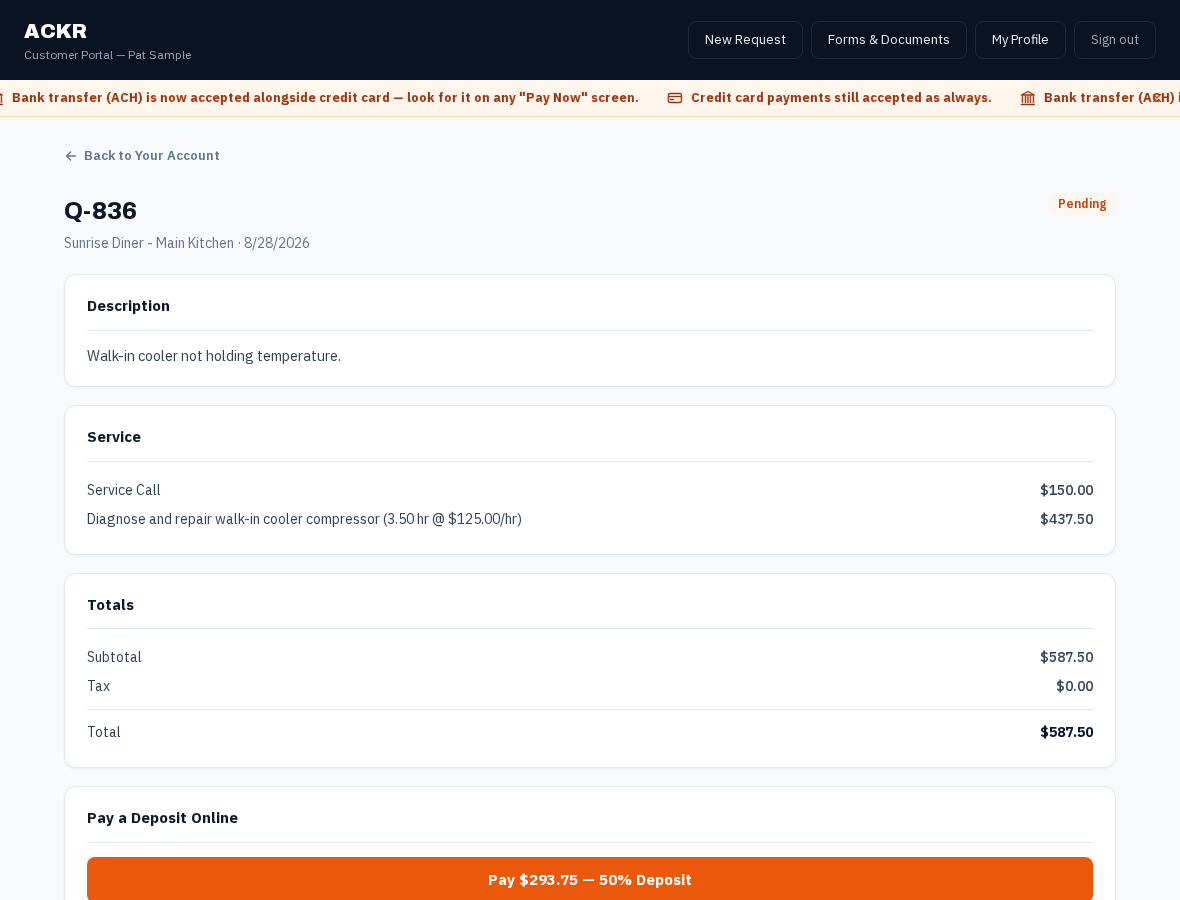
If we've sent you a Quote for work, you can secure it with a 50% deposit paid online — by card or bank transfer (ACH) — right from the Quote page.
1
Open the Quote and click Pay Deposit
Open the Quote from Your Account, review the details, and click the orange "Pay — 50% Deposit" button. You'll be taken to a secure Stripe checkout page to enter your payment info.
2
What happens after you pay
Card payments confirm in seconds. Bank transfer (ACH) payments take 1–4 business days to clear — the Quote will show "processing" until it does, and you'll get an emailed receipt automatically once it settles. Either way, your deposit is recorded and we get started scheduling the work.
4. Paying an Invoice Online
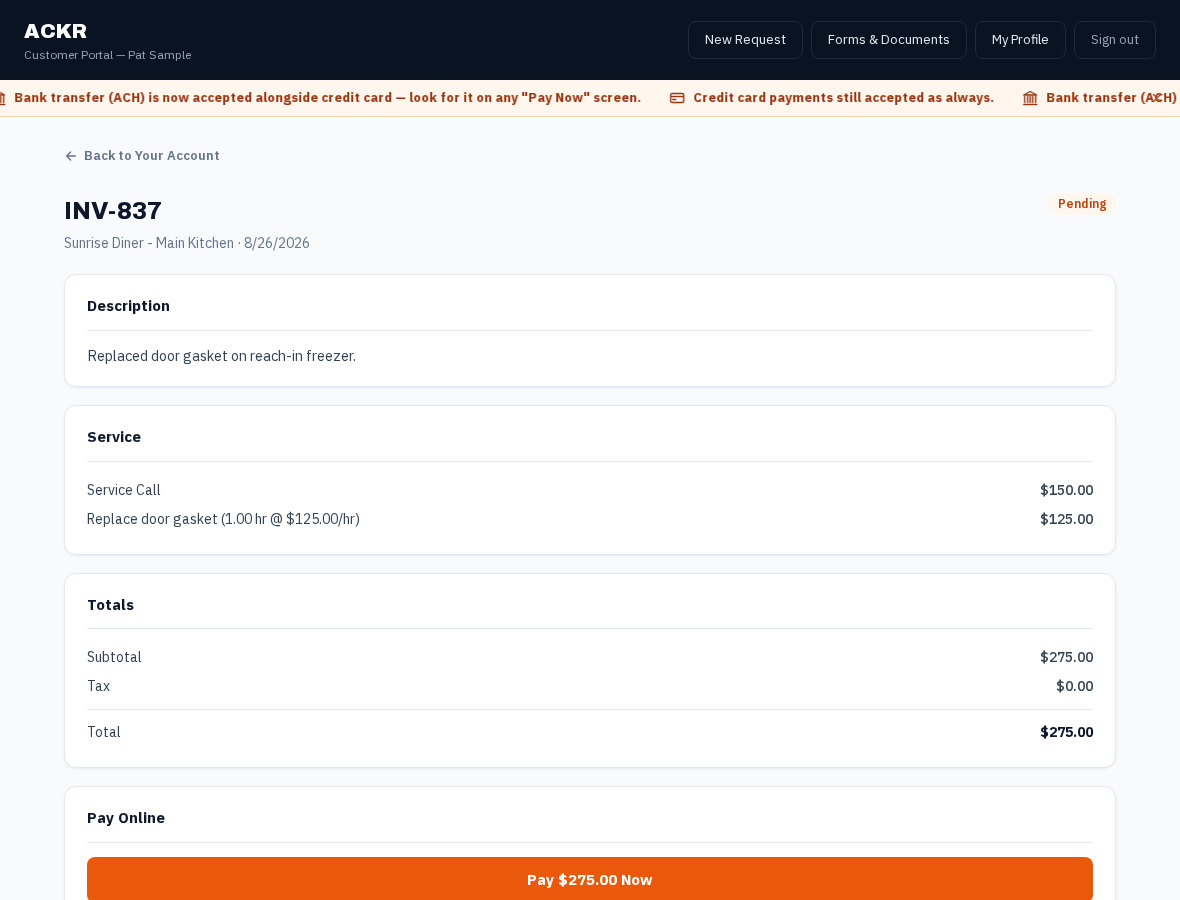
Once a job is complete, we'll send an Invoice. You can pay it in full online the same way.
1
Open the Invoice and click Pay Now
Open the Invoice from Your Account and click "Pay [amount] Now." Same secure checkout, same card-or-bank-transfer options as a Quote deposit.
5. Requesting Service
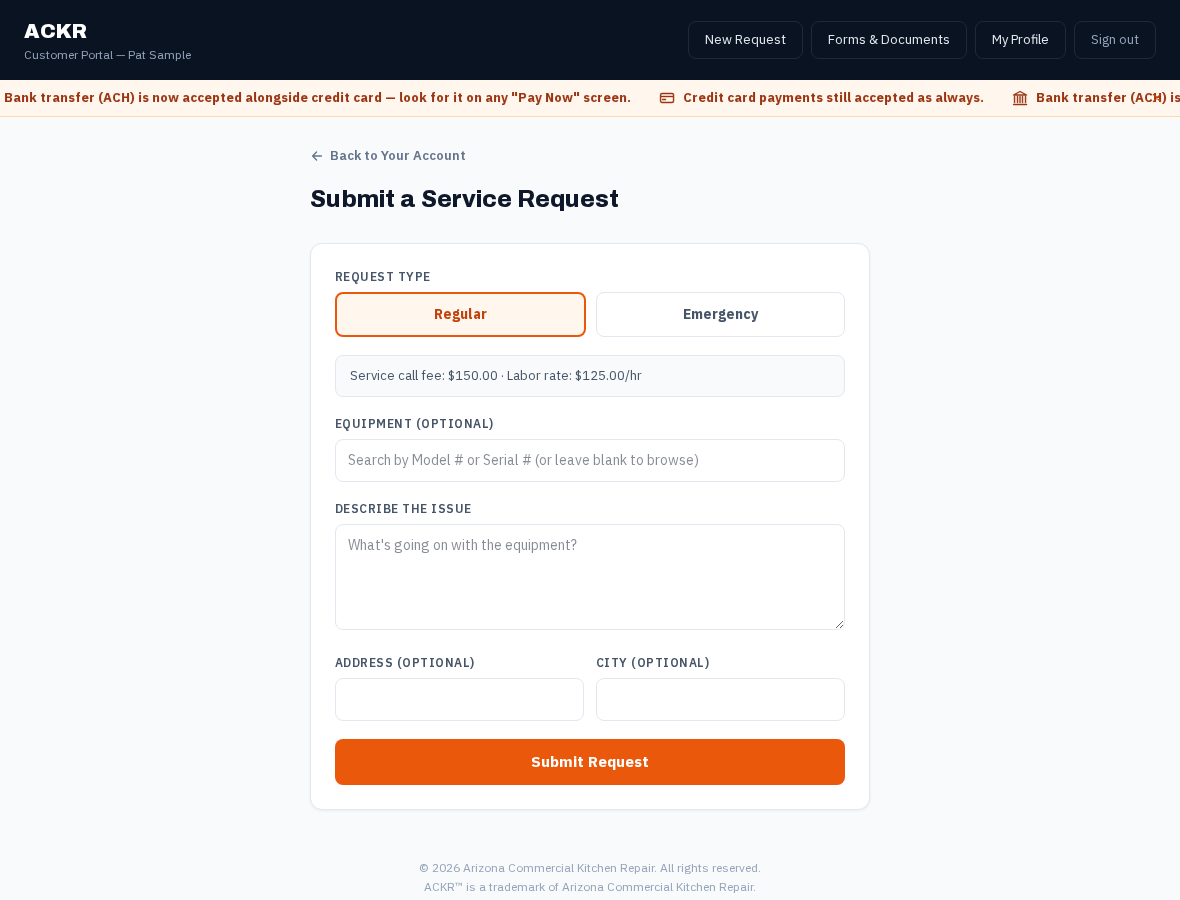
Need us to come out? Submit a request right from the portal instead of calling.
1
Click "Submit a Service Request"
From Your Account, click "+ Submit a Service Request." Tell us what's wrong, which piece of equipment it is (search by model or serial number if you've had it serviced before), and whether it's an emergency. We'll follow up to get it scheduled.
6. Leaving a Review
After a completed Invoice, we'll email you a short one-time link asking how we did — no account or sign-in needed for that link.
1
Rate your experience
Pick a star rating, optionally add a quick tag or comment, and submit. It takes under a minute.
2
Thanks — and a Google review, if you're up for it
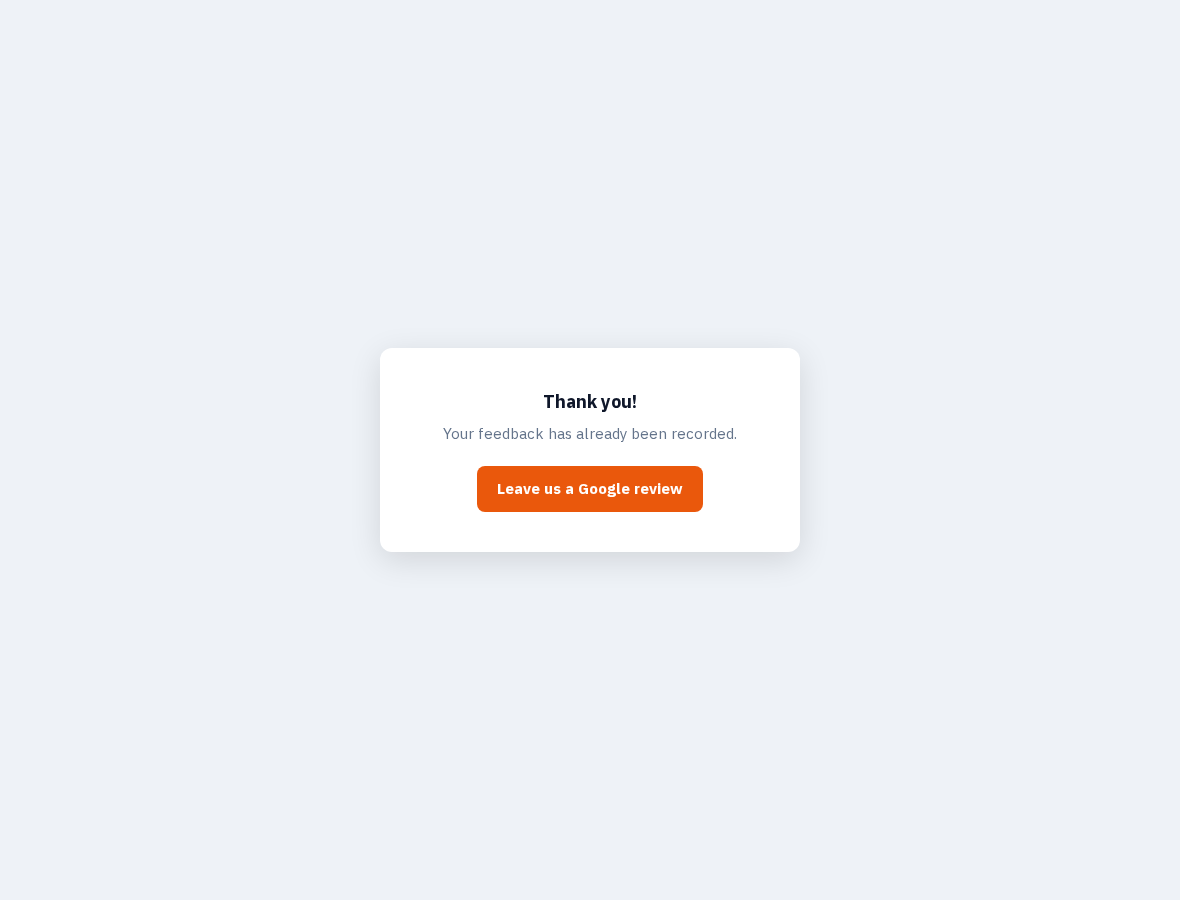
Once you submit, you'll see a thank-you page — with a one-click link to also leave us a public Google review, if you'd like to.
Still need help?
Call our office and we'll walk you through it.